The User Interface
General Prologue
Advances of Science and Technology have put to man in plane intermediate between tangible and intangible computacionalmente speaking, is now so common to coexist with computer daily that every time is made more imperative the best man-machine interaction through a suitable interface (User interface), that offers as much comfort him, as efficiency.
The present work is an introduction to the world of the User interface, in they are the basic concepts and slight knowledge that will allow ahead in entering to us in this scope more.
INTERFACE CONCEPTS
Lewis and Rieman [ 1993 ] define the interfaces man computer like:
Those basic interfaces that include things or objects like menus, windows, keyboard, mouse, "beeps" and some other sounds that the computer does, in general, all those channels by which one allows to the communication between the man and the computer.
The fundamental idea in the interface concept is the one of mediation, between man and machine. The interface is what "average", which ensure communications, the interaction, between two systems of different nature, typically the human being and a machine like the computer. This implies, in addition, that it is a translation system, since both "different languages speak": verb-iconic in the case of the binary man and in the case of the electronic processor. Of one more a more technical way it is defined to User interface, like set of components used by the users to communicate with the computers.
The user directs to the operation of the machine by means of instructions, denominated generically entrances. The entrances are introduced by means of diverse devices, for example a keyboard, and becomes electronic signals that they can be processed by the computer. These signals are transmitted through circuits known like bus, and are coordinated and controlled by the unit of central process and a known software like operating system. Once the UPC has executed the instructions indicated by the user, it can communicate the results by means of electronic signals, or exits, that are transmitted by the bus to one or more output devices, for example a printer or a monitor.
Summarizing then we can say that, a software interface is the part of an application that the user sees and with which interacts. It is related to the underlying structure, the architecture, and the code that the work does of software, but it is not confused with them. The interface includes the screens, windows, controls, menus, metaphors, the aid in line, the documentation and the training. Any thing that the user sees and with which it interacts is part of the interface. An intelligent interface is easy to learn and use. It allows the users to make his work or to carry out a task in the way that does more feeling for them, instead of having to adjust to software. An intelligent interface is designed specifically for the people who will use it.
CLASSIFICATION
Within the Interfaces of User to distinguish two types basically:
A hardware interface, at level of the used devices to enter, to process and to give the data: keyboard, mouse and visualizadora screen; y
A software interface, destined to give to information about the processes and tools of control, through which the user observes habitually in pantalla.
Of this general classification it is possible to be giving off some, thus for example according to his evolution we have them user interfaces run in parallel with the one of the operating systems; in fact, the interface at the moment constitutes one of the main elements of an operating system.
Next are the different interfaces that historically have been appearing, exemplifying them with the successive versions of the more popular operating systems.
Interfaces of line of mandates (command-line to user interfaces, CUIs).
He is the characteristic one of the TWO, the operating system of the first PC, and is the oldest style of man-machine interaction. The user writes orders using a formal language with a vocabulary and an own syntax (the mandates in the case of the TWO). A keyboard is used, typically, and the orders are directed to conduct a battle.
The user usually does not receive much information on the part of the system (example: indicator of the TWO), and must know how the computer works and where they are the programs (nothing is hidden to the user). The model of the interface is the one of the programmer, not the one of the user. Example of the DIR-DEL-DIR, by the lack of information of answer of the TWO. Other times, however, she is excessive: it labels of the volume in the DIR.
Disadvantage: load of memory of the user (must memorizar mandates; the aid is even difficult to read); not always suitable names to the functions, meaning of mandates badly included/understood sometimes (several mandates with the same one or seemed meant, like Of and the ERASE); inflexible in the names (Of and the noncDelete).
Advantages: powerful, flexible and controlled by the user, although this is an advantage for experienced users. The syntax is strict, and the errors can be graves
Así:
C:\TMP\>dir The volume in C drive is PCDOS_6 Serial number of the Volume is 1D8F-82B0 Directory of C:\TMP . < DIR > 02-02-98 21:08 . < DIR > 02-02-98 21:08 ABCD < DIR > 02-02-98 21:23 LETTER DOC 1,107 22-10-96 9:51 4 archivo(s) 1,107 bytes 24.862.720 free bytes C:\TMP \ > |
Problem of mandate Copy
In sum, a CUI is adapted for expert users, does not stop noveles. For those are more expresses, reason why a CUI like part of an interface can be designed, so that it is possible to be used once experience is had.
Interfaces of menús.
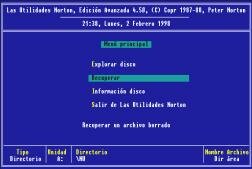
A menu is a list of options that are in the screen or a window of the screen so that the users choose the option who wish (it see example). The menus allow two things: to sail within a system, being presented/displayed routes that take from a site to another one, and to select elements of a list, that represent properties or actions that the users wish to make on some object.
The interfaces of menus appear when the computer becomes a tool from user and not only from programmers. The present graphical or OO interfaces continue using this type of interfaces (the different styles from interfaces are not mutually exclusive).
Different types from menus exist. First they were the menus, structured jerárquicamente .
Let us see:
Menu (Norton Utilities)
The bar menus, located in the superior part of the screen, profusely are used in the present applications. They contain a list of generic actions that take step to pull-down menus where they take shape.
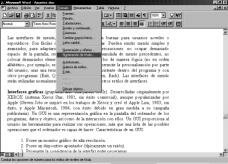
Menu of bar and pull-down menu
These menus can take to others as well: they are the cascade menus. They can change dynamically, and deshabilitar options that are not available in a while dice (marking them habitually in gray).
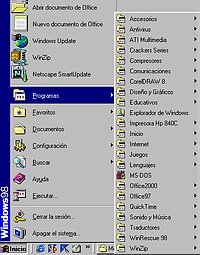
Cascade menus of the bar of Windows 95 beginning
The trowels or bars of tools are graphical menus with actions, tools and options that can be placed in the screen. They are used much in graphical programs.
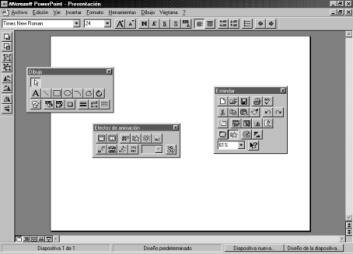
Tool palettes in Microsoft Powerpoint
The contextual menus or menus pop-up are most recent. They are called thus because the content of the menu depends on the work context of the user. They contain solely the options that are applicable to the selected object, plus some of use frequents that also they are accessible from the menu of barra.
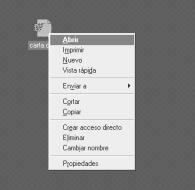
Contextual menu of an icon in the Windows 95 writing-desk
The interfaces of menus, or structured, are good for sporadic users noveles or. They are easy to learn and to remember. Simple and advanced menus can exist, to adapt to the type of user.
Precautions: not to occupy too much space of the screen, to remember the accumulated information of preceding menus, not to place too many elements in the menu, to group them of logical way (not in alphabetical order, for example; this aid to remember them), to allow the personalización on the part of the user, to use a suitable and consistent terminology within the program and with other programs (Exit, Quit, Escape, Close, Return, Back). The interfaces of menus will be used normally in conjunction with the other styles of interfaces.
Graphical interfaces (graphical user interfaces, GUIs).
Developed originally by XEROX (system Xerox Star, 1981, without commercial success), although popularized by Apple (Steven Jobs was inspired by the works of Xerox and created the Smooth Apple, 1983, without success, and Apple Macintosh, 1984, successfully had to a great extent to its advertising campaign).
The three more common styles of graphical interfaces man-computer are: What you see she is what you can obtain (WYSIWYG What you see is what you get), direct Manipulation and Interfaces of user based on icons.
A GUI is a graphical representation in the screen of the computer of the programs, data and objects, as well as of the interaction with them. A GUI provides to the user the tools to conduct its operations, more than a list of the possible operations that the computer is able to do.
Characteristics of a GUI:
1.Posee a graphical monitor of discharge resolución.
2.Posee a pointing device (typically ratón).
3.Promueve the consistency of the interface between programas.
usuary 4.Los can see in the screen the graphs and texts as they will see impresos.
5.Sigue the paradigm of the interaction object-accio'n.
6.Permite the transference of information between programas.
7.Se can directly manipulate in the screen the objects and información.
8.Provee elements of standard interface like menus and diálogos.
9.Existe a visual sample of the information and the objects (icons and ventanas).
10.Proporciona visual answer to the actions of usuario.
11.Existe visual reconnaissance of the actions and ways of usuario/sistema (menus, paletas).
graphical controls (widgets) for the selection and introduction of información. 12.Existen
13.Permite to the users to personalize the interface and interacciones.
14.Proporciona flexibility in the use of input devices (teclado/ratón).
An important characteristic is that the GUI allows to manipulate the objects and information of the screen, to not only present/display it.
In order to use a GUI, the users they must know (or learn) a series of concepts: organization of the system (files, directories in Win95), different types from icons and effect of the actions on them, basic elements of a window, use of the controls of the GUI, use of the mouse.
The GUI uses the style object-action, in contrast to the action-object of the CUI or the interfaces of menu. The user selects an object, and later the action to make on this object. The objects are the main center of attention of the user, which is more natural and next to its mental model.
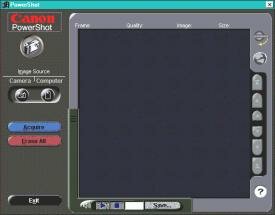
Metaphor of the camera
Interfaces OO (object oriented to user interfaces, OOUIs).
Its aspect is similar to the one of the GUIs. The difference is based in the underlying model: the GUIs are interfaces oriented to the application, whereas the OOUIs is oriented to the object. The table following sample the main differences between both styles of interface:
|
Interfaces oriented to the application |
Interfaces OO |
|
The application consists of an icon, a main window and several secondary ones |
The product consists of a collection of seen objects that they cooperate and of these objects |
|
The icons represent open applications or windows |
The icons represent objects that can be manipulated directly |
|
The users must open an application before working with objects |
The users open objects like views in the writing-desk |
|
He provides to the user the functions necessary to make the tasks |
He provides to the user the materials necessary to make the tasks |
|
He is centered in the main task determined by the application |
He is centered in the entrances and exits of the objects and tasks |
|
The related tasks are supported by other applications |
The related tasks are supported by the use of other objects |
|
Rigid structure: function |
Flexible structure: object |
|
The users can be catched in a task |
The users do not have to be catched in a task |
|
The users must follow the structure of the application |
The users can make tasks to their own pleasure |
|
Many applications are required: one by task |
Few objects are required, that are reused in many tasks |
The objective of the OOUI is that the user concentrates itself in his tasks instead of in the computer and how to use the applications and files necessary to fulfill its objectives. For that reason the organization of the system to the user hides (Example of the direct access in Windows95-OS/2).
The style of interaction of the OOUIs is the one of object-action (also it occurs in the GUIs, although mixed with the style action-object). The window is an object window, not an application window; they disappear because the bar menus and take terrain the contextual ones.
The objects can be classified in three categories: data, containers and devices. On them different views are defined (for example, the aid constitutes a Vista of the object). To define the objects and the views is most complicated of the design of the interface. The object must be familiar to the user (to fit with its mental model, supported in its daily life), and be related to the real world: use of the metaphors.
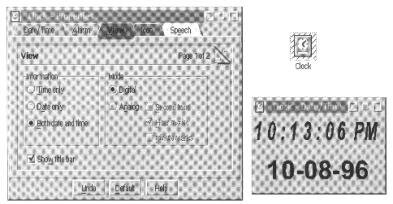
Different views from the object clock
An example of which it is tried with an interface OOUI is to consider a document like an object on which to make tasks such as of incorporating graphs and texts, with no need to use programs different for each one from them. These programs usually have functions that are overlapped, with the consequent extra cost in space and money.
At the moment a mixture of products oriented to the application and the object exists, although a migration to these last ones is taking place. The applications are opening the way to sets of objects.
HUMAN CHARACTERISTICS OF THE INTERFACE DESIGN
Human Factors
When designing user interfaces must have in account the cognitivas abilities and of perception of the people, and adapt the program to them.
Thus, one of things more important that an interface can do is to reduce the dependency of the people of its own memory, not forcing them to remember things unnecessarily (for example, information which it appeared in a previous screen) or to repeat operations already conducted (for example, to introduce a same data repeated times).
The person has abilities different from the machine, and this one must use hers to avoid those of that (as for example the little capacity of the memory of short reach).
Speed of Learning. - It is tried that the person learns to use the system more soon possible.
Speed of Answer. - The time necessary to conduct an operation in the system.
Error rate. - Percentage of errors that the user commits.
Retention. - How much the user remembers on the use of the system in a period. of time.
Satisfaction. - One talks about to that the user is to taste with the system.
In addition to these others exist to consider:
Adjustment
Physical Characteristics. - Each person has different physical characteristics. There are some people whom they do not like the keyboards whereas to other yes. She is why there are ergonomic keyboards. The same she happens to mouse.
Atmosphere. - The place where it is going to be used the system. Each interface must adapt itself to the place.
Visibility. - To take into account the amount from illumination from the place. Is reflected the brightness in the screen?
Personality. - According to the age, socioeconomic level, etc.
Culture. - The Japanese do not have the same screens, windows, etc. This factor is important if the market for the system is at international level.
According to the function we have:
Motivation
Vital Systems. - They are of life or death; many people depend on them. Example: a system for nuclear reactors. This system works in real time, and is of extreme importance the security and effectiveness of the same one.
Commercial and Industrial systems. - They serve to increase the productivity and to sell more.
Systems of Office, Home and Games. - Important factor: the market to that is directed; they must be very friendly and to satisfy the client.
Systems of Investigation. - They make very specific tasks and they try to imitate the means in which the user develops.
PASSAGES FOR THE INTERFACE DESIGN
Classic Steps
In the process of design of an user interface four phases or steps can be distinguished fundamentales:
To collect and to analyze the data of usuario
To design the interface of usuario
To construct the interface of usuario
To validate the interface of usuario
To collect and to analyze the data of the user
It is to say to make specific through requerimentación techniques, what type of users is going to use the program, what tasks are going to make the users and how they are going them to make, what demands the users of the program, in what surroundings the users develop (physical, social, cultural).
To design the user interface.
It is important to dedicate to time and resources to this phase, before entering the codification. In this phase the objectives of usabilidad of the program are defined, the tasks of the user, the objects and actions of the interface, the icons, views and visual representations of the objects, the menus of the objects and windows. All the visual elements can be made first by hand and soon refine with the suitable tools.
To construct the interface of usuario.
He is interesting to make a previous prototype, one first version of the program that is made quickly and allowed to visualize the product to be able to prove it before codifying it definitively.
To validate the user interface.
Tests of usabilidad of the product are due to make, if possible with the own end users of the same one.
It is important, in sum, to make a design that leaves from the user, and not of sistema.
11 passages in the process of centered design "in the tasks" exist, similar to the previous one but that it detachhes some implicit activities in others, thus:
To understand who will use the system to do what.
To choose representative tasks for the design.
To plagiarize or to copy.
To sketch a design.
To think about the design.
To create a prototype.
To evaluate it with the users.
To repeat.
To construct it.
To track it.
To change it.
Techniques and steps outposts for the design of user interfaces
Presentation of información:
Too many objects in the screen are not due to place, and those that exist must be distributed well. Each visual element influences in the user not only by itself, but also by its combination with the rest of present elements in the screen.
The number of visual elements that they perceive is: in case a) 1 (the bottom); in b) 3 (the line, which is above and what it is underneath); in c) they are 5 (the space outside the box, the box, the line and the space raises and underneath this one); finally, in d) the number rises to 35, following the same criterion. Conclusion: each new element that is added influences more than what it thinks about the user.
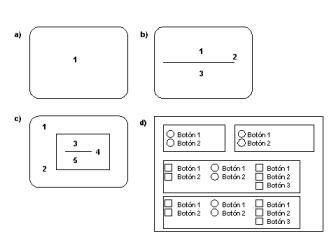
Elements of screen design and their visual perception
Analysis of Color: it is probably the element of the interface that with more frequency badly is used. The color communicates information, is not only decorative (example: to reinforce error messages).
Suitable combinations must be used (for example, the trowels provided by the operating systems). The color must attract the attention, but not tire after awhile of work.
It is specially important to follow the lines of design existing. Basic principle: to design first in black and white, and soon to add the color.
Audio Analysis. First it is precise to see when he is more appropriate than the visual reconnaissance. Second, to determine the suitable sound. Third, to allow the personalización (volume and decontamination). As in the case of the colors user's guides exist. In opened places of work, he can little be effective; in addition, he can be embarrassing for some people. The sound must be used to inform, not when it does not add anything new (for example, a message of warning of mail or welcome, respectively, when initiating a work session).
Analysis Animation. It is defined as a change in the time of the visual appearance of a graphical element. Examples of its use: progress of actions (copy of Windows 95 files, installation of programs), been of possible processes (printer icons), actions (changes in the cursor when moving the mouse). The animation can help to emphasize important icons, to show the state of a particular object or to explain its behavior.
International design. A use must be done adapted of the terminology. There is much work in this field. It must be had well-taken care of with the cultural differences (gestures, terminology, drawings, formats of telephones or calendars, etc.).
Analysis and Election of controls. Often the doubt of what controls exists utilizar.
In fact an only correct form does not exist. An aspect to consider is the scalability (menu of 10/1000 elements; example: programs of the menu beginning of Windows 95).
Example of alternatives: to use a trowel or bar menu, to allow to drag objects or not (problem: visual indication does not exist of which the object can be dragged: what objects can be dragged? to where they are possible to be dragged? what will happen when they arrive there? the action will be able to be undone).
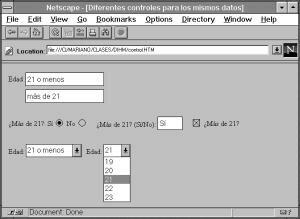
Different controls for such data
Guides of Experts
Diverse guides of design exist removed from experts and committees, that they previously complement to the studied gold rules. To mention some of them:
Too much symmetry can make the screens difficult to read.
If objects without aligning are put, to do it drastically.
Asimetría=activo, simetría=sereno.
Elements of similar size and color are perceived like pertaining to a group.
To assume errors in the entrance of the user.
To design for the user, does not stop to demonstrate the own knowhows.
Spectacular graphs will not save to a bad interface.
CONCLUSIONS And RECOMMENDATIONS
The knowledge of these key points, will allow us to focus us better to the study of the matter.
The Interfaces of user, like bond of immersion of the man in the surroundings of present technological work, heighten their importance in the development of new products, more effective, efficient and interactive, that is what the market demands.
Points, how historical and the evolutionary ones, must be boarded of investigativa way, we remember that "to know the past it projects us to the future".
Other detailings of classification will force to that we investigate and we propose, new distributions clasificatorias, equipment to future in a race of development of software.
Author:
 |
 |
 |
 |
||
| PRINCIPAL | ELECTRÓNICA | INFORMÁTICA | TECNOLOGÍA | ||
| Ciencias Místicas - www.cienciasmisticas.com.ar - El sitio de electrónica, informática y tecnología. | |||||